Webinar Recap: How to Tell a Clear Story With Your Subsurface Data


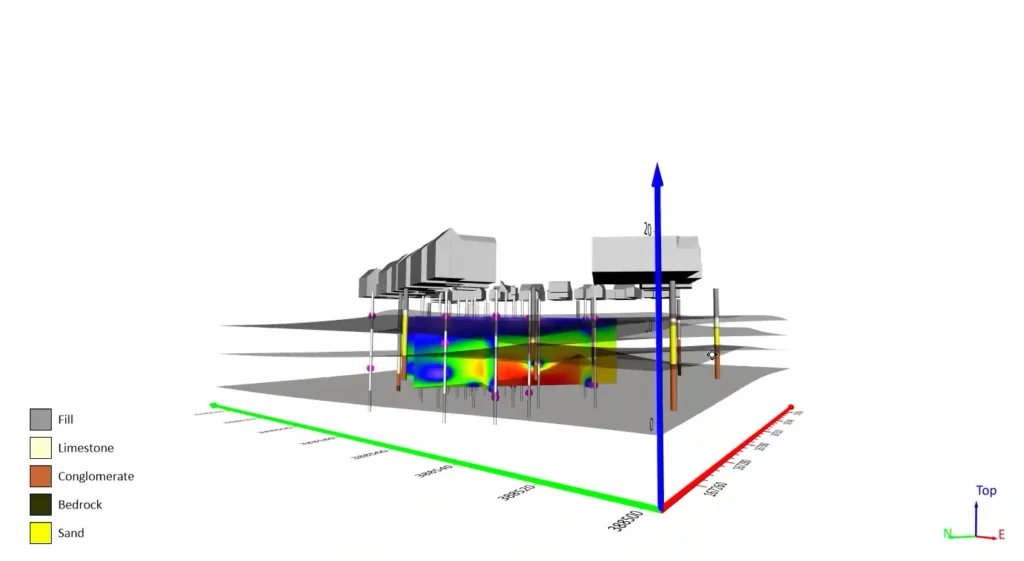
Subsurface data can tell you a lot, but only if you can see through the complexity. Drillholes, geological surfaces, grids, groundwater or contamination data, geophysical measurements, and contextual layers can all provide valuable pieces of the story. But when all of those pieces appear in the same visualization, the information you actually need can get buried.
So, how do you move from having all the data in front of you to understanding what it’s actually telling you? That’s exactly what Golden Software Senior Technical Sales Specialist Drew Dudley explored during our recent webinar, Visualizing with Purpose: How to Tell a Clear Story with Your Subsurface Data. Throughout the session, Drew demonstrated how 2D and 3D visualization can help you explore complex subsurface data, isolate areas of interest, and ultimately communicate your findings more clearly to stakeholders.
Whether you missed the webinar or want to revisit the highlights, we’ve pulled together some of the biggest takeaways. Let’s walk through them so you can visualize your subsurface data with purpose instead of simply showing everything at once.
Start by Building the Full Picture of Your Subsurface Data
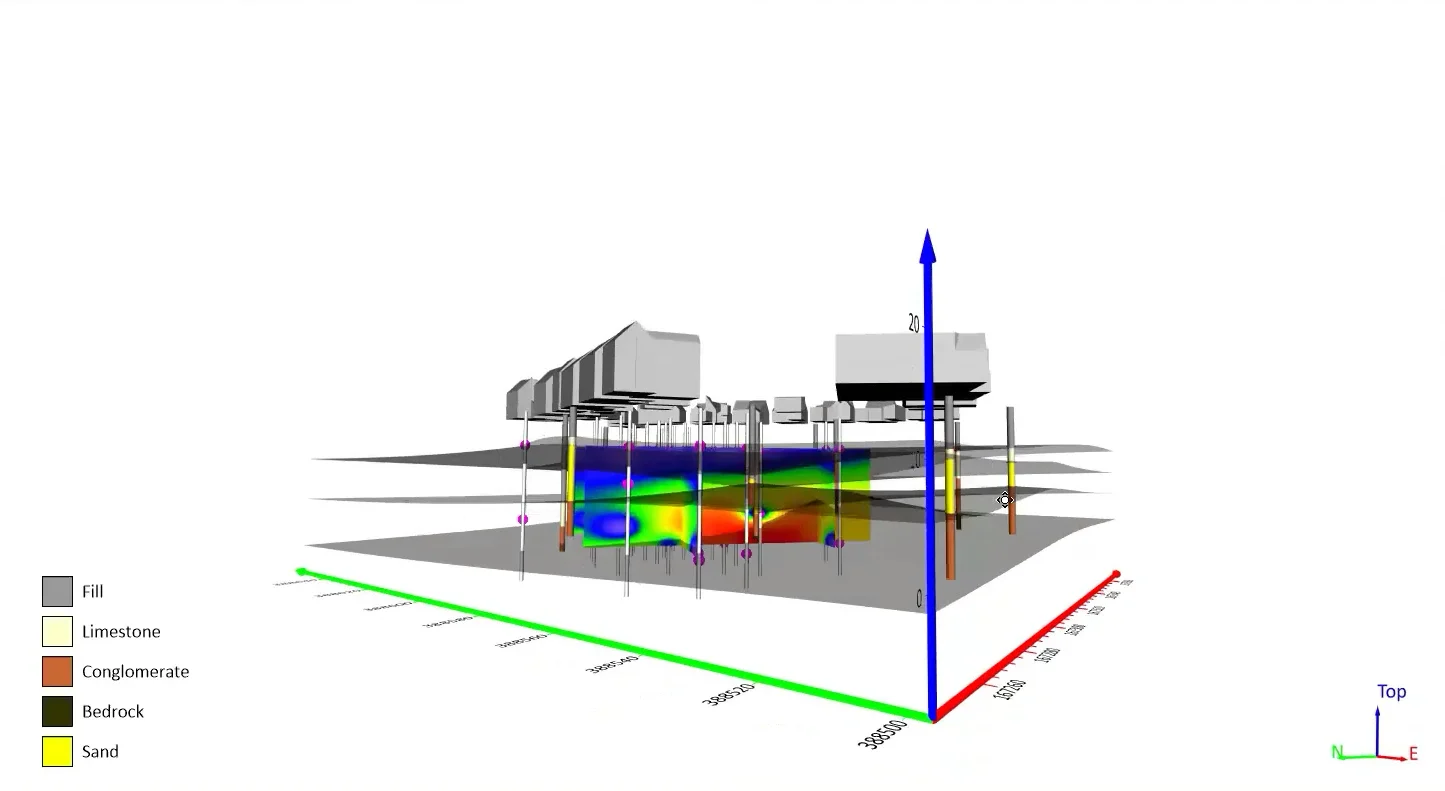
Before you can decide what to focus on, you first need to understand all the data you plan to use. That’s why Drew began by bringing several datasets together to establish the full project context. His example combined surface, structural, geological, and contamination data into one 3D model, creating a foundation he could progressively refine throughout the webinar. Here’s what that looked like practically.
Establish the site context
Drew started by creating a color-relief layer of the ground surface. From there, he added aerial imagery using Surfer’s Download Online Maps feature, vector building footprints from an online source, and a 3D DWG CAD file representing the buildings.
Together, these layers established the context for the geographic and built-environment surrounding the project. Rather than jumping immediately into the subsurface data, Drew first created a recognizable picture of the site that could help orient viewers before introducing additional information.
Add lithology and contamination data
With the landscape established, Drew shifted focus to what’s underground. He added lithology drillhole data and used it to create contacts and surfaces representing various subsurface layers, then applied a color scale to make the different lithologies easier to distinguish.
Next came the contamination data. Drew added a second drillhole dataset containing PFAS measurements and gridded the information to visualize the contamination plume in 3D. He also adjusted the color mapping to emphasize areas with higher PFAS concentrations.
By this point, Drew’s model contained terrain, buildings, lithology, drillholes, and a 3D PFAS plume. It was a comprehensive view of the project. However, having everything visible was only the starting point. The next step was figuring out how to move through all that information and focus on the parts of the model that mattered most.
5 Ways to Visualize Your Subsurface Data With Purpose
With the full model assembled, Drew provided valuable project context, but it also meant a lot was happening on the screen at once. To make things easier to understand, Drew demonstrated how to progressively focus a visualization based on what you need to understand and, ultimately, what you need to communicate. Here are five workflows he explored.
1. Isolate areas of interest with multiple clipping planes (Timestamp 30:00)
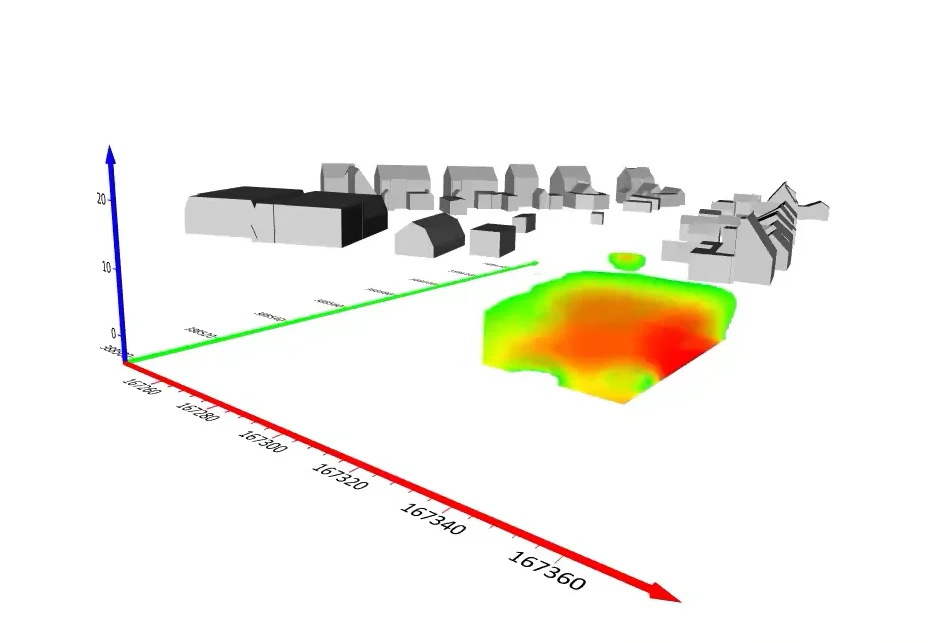
Sometimes, getting more from a 3D model starts with showing less of it. Drew first turned off layers that weren’t relevant to his immediate investigation and applied a clipping plane to the 3D PFAS volume. He specifically positioned a YZ clipping plane around the higher-concentration portion of the plume to take a closer look at the contamination directly below certain features above ground.
He then added another clipping plane along the XZ plane, peeling back the model even further to isolate the area he wanted to investigate. Using multiple clipping planes this way empowered Drew to progressively remove portions of a complex 3D volume from view until the feature he was interested in became easier to examine.
2. Slice through your 3D data to examine what’s happening inside (Timestamp 34:40)
Clipping planes help remove portions of a model from view, but what if you want to investigate what’s happening inside the 3D volume itself? That’s where slices can provide another perspective.
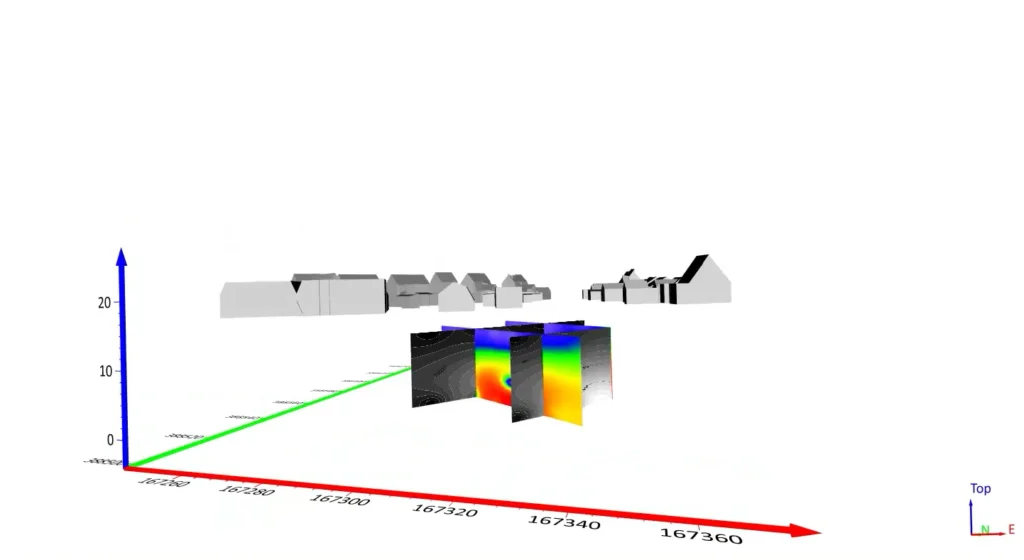
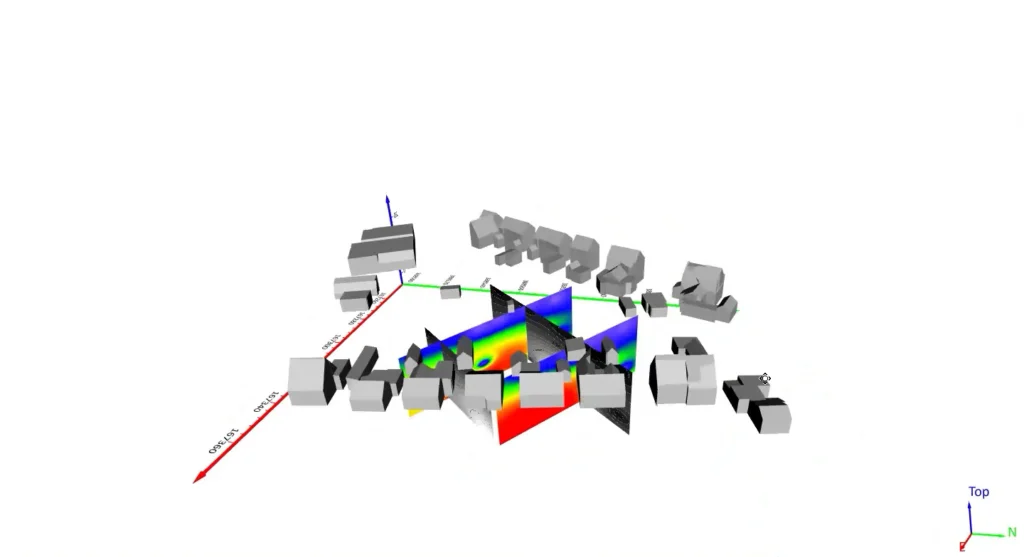
Drew walked through two approaches using the PFAS contamination plume. First, he created image slices, which could be repositioned along a plane to investigate internal patterns at different locations. He also showed how multiple slices could be added on different planes to give several focused views through the same volume.
From there, Drew created contour slices to represent the values along a particular section of the subsurface dataset. Like image slices, these could be repositioned to investigate different portions of the model.
3. Move from 3D exploration to clear 2D cross sections (Timestamp 41:50)
One of the broader lessons from Drew’s demonstration was that 2D and 3D visualization don’t have to compete. Each can play a different role as you move from exploring your data to focusing on a particular finding.
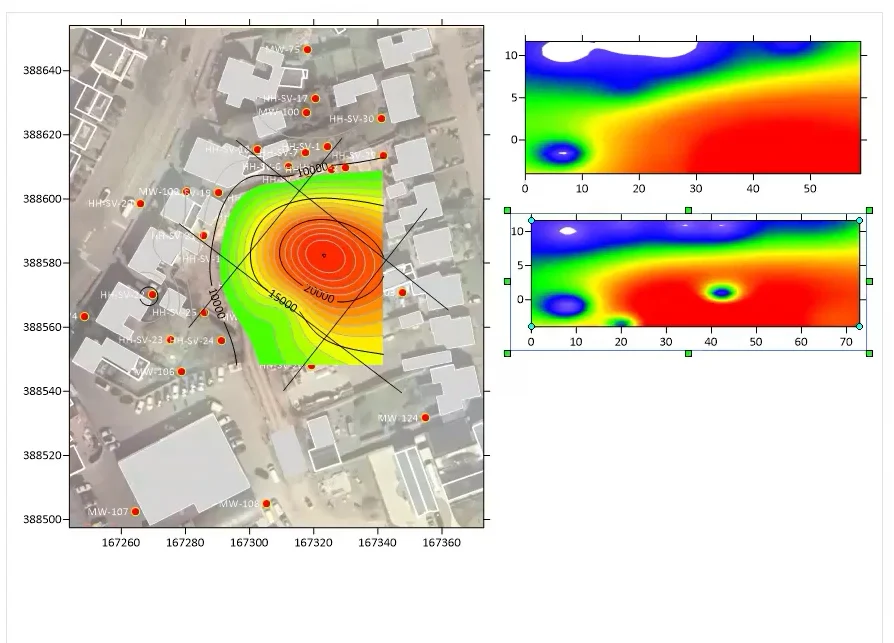
Drew showed how a target slice from the 3D model could be saved as a grid and brought into Surfer’s 2D Plot window as a cross section. He then explained that he could create separate map frames for individual cross sections and add additional grid-based layers, such as contours, to further refine the visualization.
That created a useful progression: Drew used the 3D model to understand the broader subsurface environment, a 3D slice to focus on a particular portion, and a 2D cross section to examine or communicate that area in a more focused view.
4. Give your project more context with document comments (Timestamp 43:48)
Visualizing with purpose isn’t only about deciding what appears on screen. It’s also important to preserve information about how and why the project and its outputs were created, especially when files move between colleagues, clients, or other stakeholders.
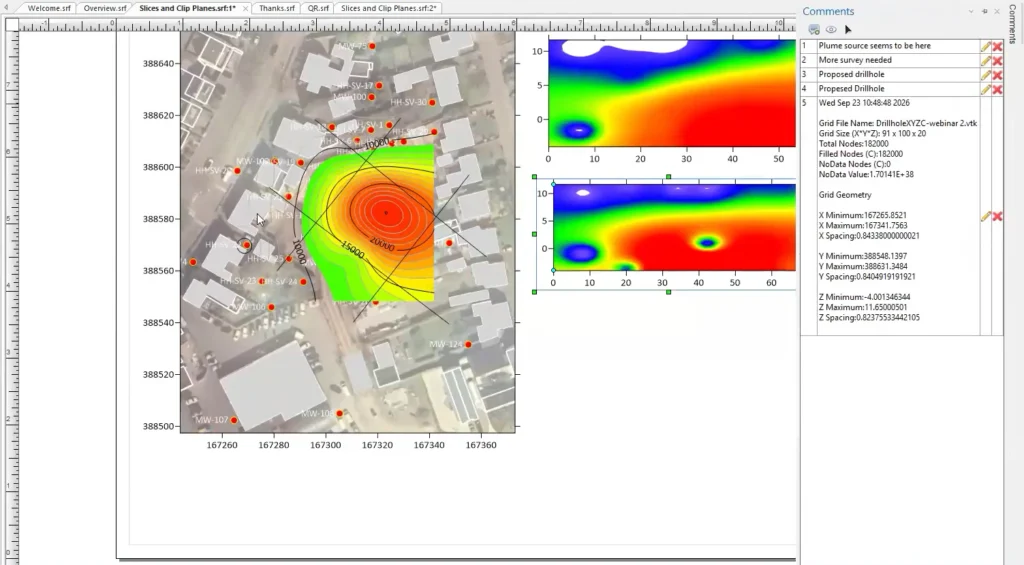
Drew demonstrated Surfer’s Document Comments feature, which equips you to store internal notes, reminders, and explanations directly within an SRF project document. He explained that you can use comments to leave suggestions, request changes, walk through a map-making process, record details such as gridding information, or provide helpful notes to keep in mind if you plan to revisit the project later.
Because those comments stay in the Surfer file when someone else opens it—and you can show, hide, edit, or delete them as needed—they can preserve project history and make collaboration easier.
5. Make your final maps easier to interpret (Timestamp 48:02)
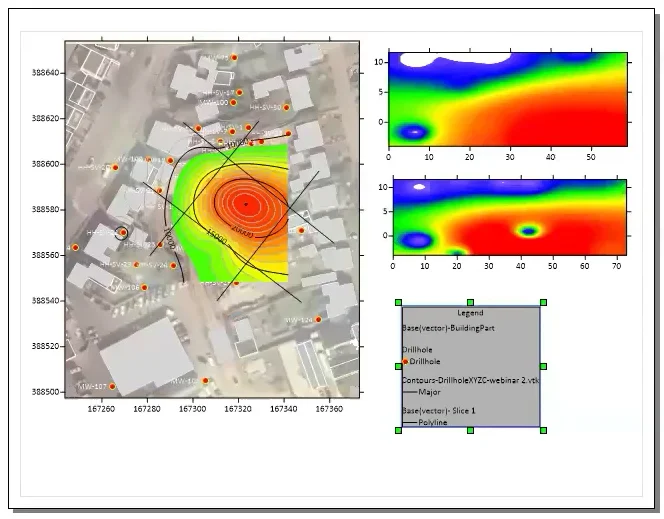
After exploring, isolating, and refining the data, there’s still one more audience to consider: the person looking at your final map. Drew wrapped up his webinar by demonstrating how legends can provide additional context for base layers that don’t use traditional symbology. He showed how to add a legend, choose which layers appear, display their layer names, refine the legend’s appearance, and add formatting such as a frame.
Compared with clipping a 3D contamination plume or extracting a cross section, adding a legend may seem like a small final step. But Drew made it clear that those finishing touches can make a meaningful difference in how quickly stakeholders understand your data visualization.
Let the Question Guide the Visualization
Complex subsurface datasets can contain far more information than you need—or want—to communicate in a single view. The goal isn’t to show stakeholders everything you know about a project. It’s to ask: what are you trying to understand and communicate? Then, you should build a visualization around that purpose.
As Drew demonstrated throughout the webinar, that may mean using clipping planes and slices to isolate a particular area, moving between a 3D model and 2D cross sections to examine the same data from different perspectives, or stripping away layers that aren’t relevant to the immediate question. Once you’ve found the story you need to tell, tools like Document Comments can preserve important project context, while clear legends can help stakeholders correctly interpret the final output.
Ultimately, it’s not just about displaying subsurface data. It’s about exploring it, understanding it, and effectively communicating what’s most important.
Want to see these workflows in action? Watch the webinar replay to follow along as Drew demonstrates each technique step by step.
Recent Articles
- Oct 21, 2026|Gabbie Rhodes|7 min
Want your subsurface data to tell a clear story to stakeholders? Learn how to visualize it in 2D and 3D so your data clearly shares key insights.
- Oct 21, 2026|Gabbie Rhodes|10 min
With climate change data, you need to visualize where temperature, precipitation, and other variables occur and change over time. Learn how.
- Oct 14, 2026|Gabbie Rhodes|7 min
Mineral exploration requires you to analyze multiple variables. To do that successfully, you need to rely on both maps and graphs.
- Oct 7, 2026|Gabbie Rhodes|8 min
In the second post of our Visualizing Technical Data series, learn how maps and graphs can showcase your water quality data and uncover insights.